Remove Duplicate Data in Zoho Sheet
Here is our approach for remove duplicate data in zoho sheet in a simple way.
Even a non-technical person can easily set it up in just a few steps

Approach
We can remove duplicate data in zoho sheet using the following steps.
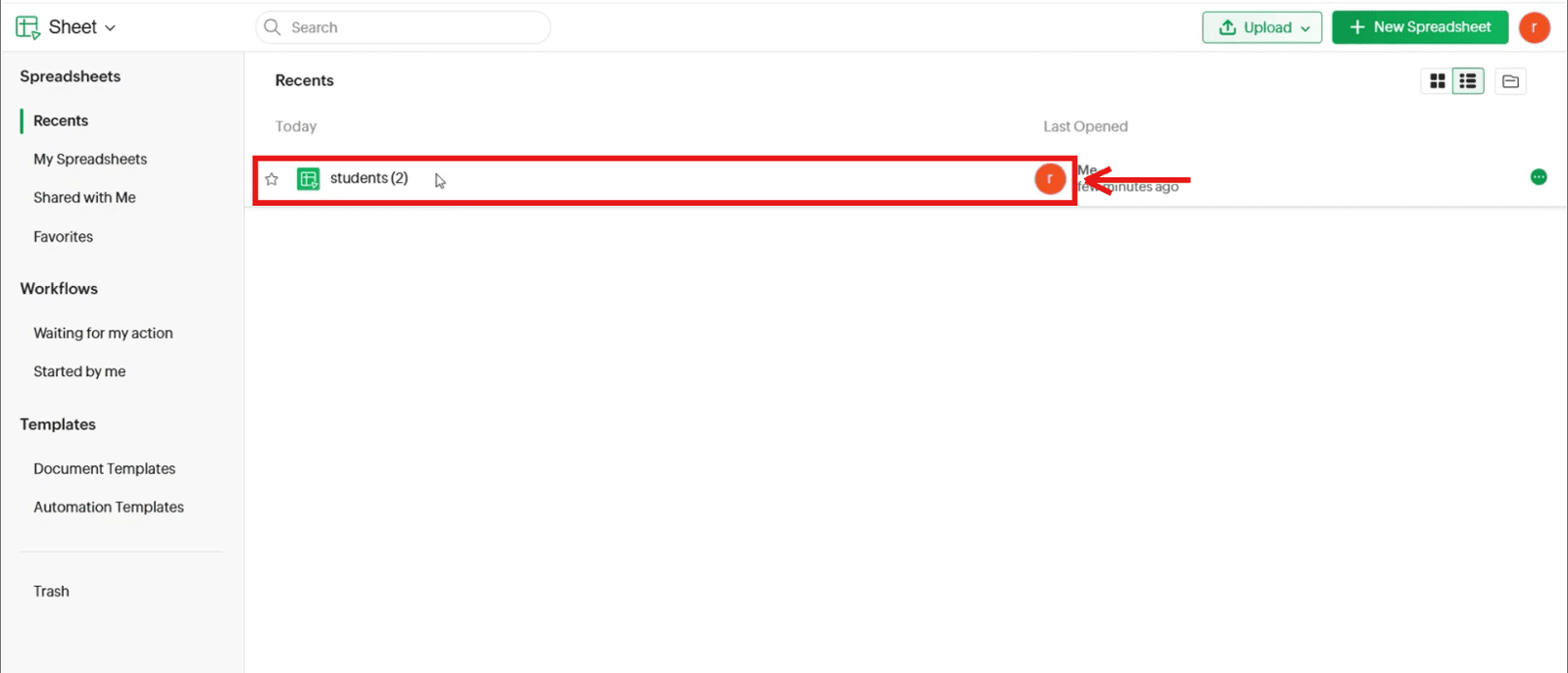
1. Open your spreadsheet
1.1 Open the spreadsheet that has the data you want to clean (1.1_Open_your_spreadsheet).
2. Select the data
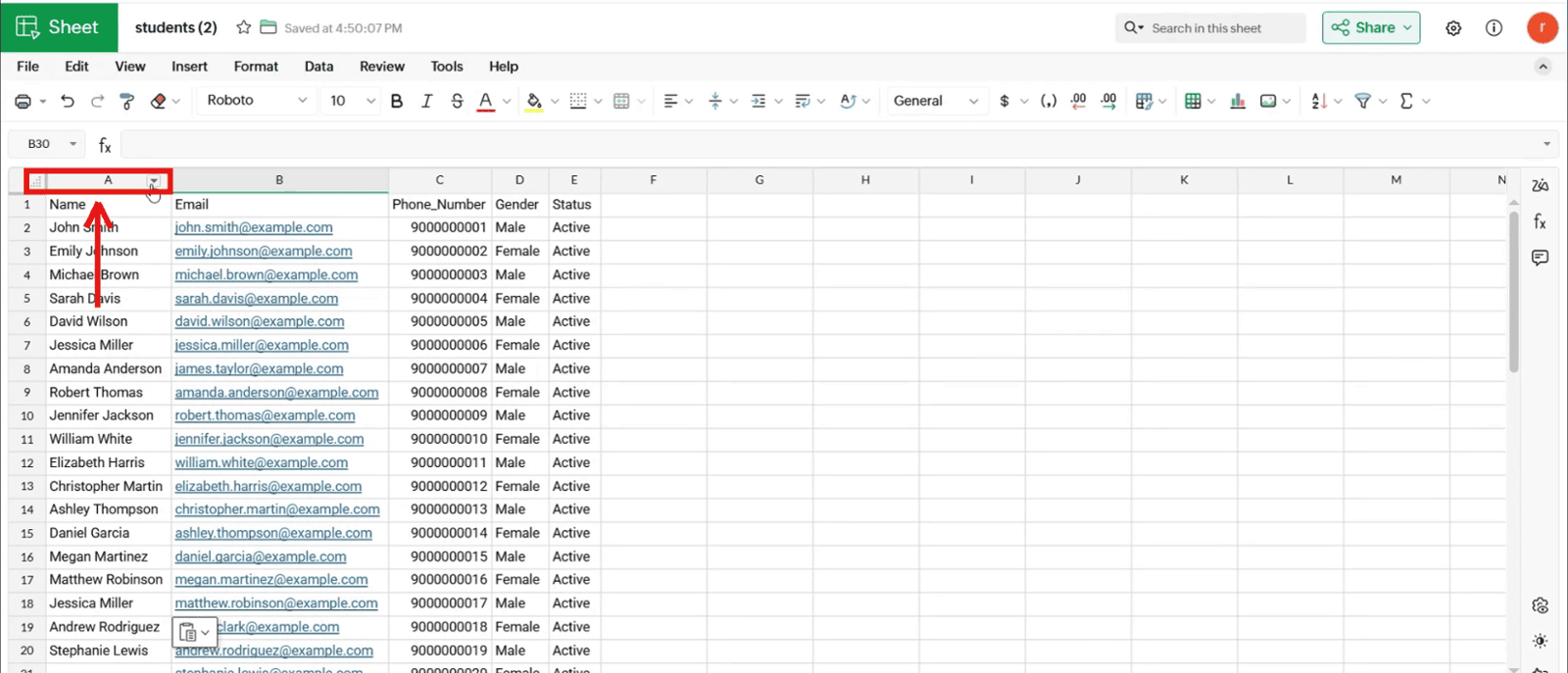
2.1 Click the column header (in the video, column A) to select the column to check (2.1_Click_the_column_header).
3. Open Find Duplicates
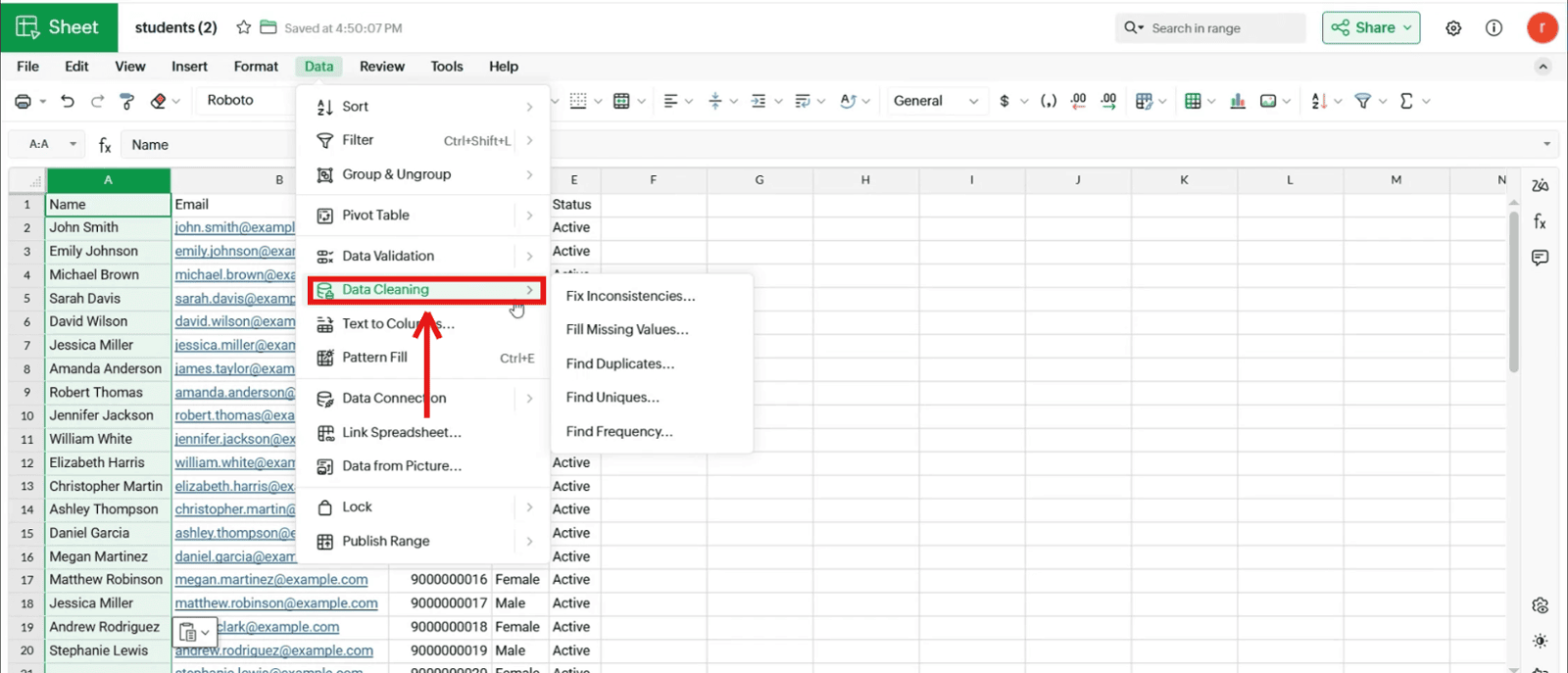
3.1 Click Data in the top menu (3.1_Click_Data_menu).
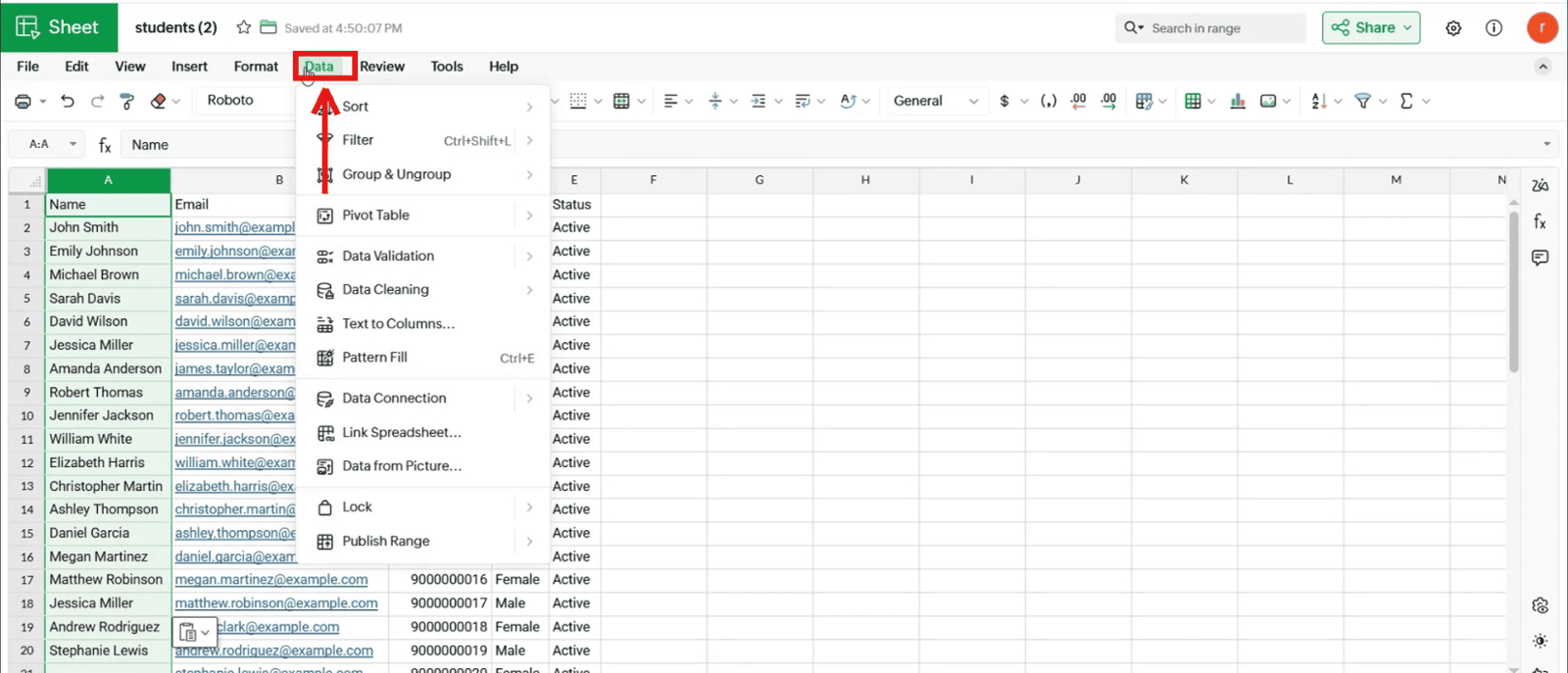
3.2 Hover over Data Cleaning (3.2_Hover_Data_Cleaning).
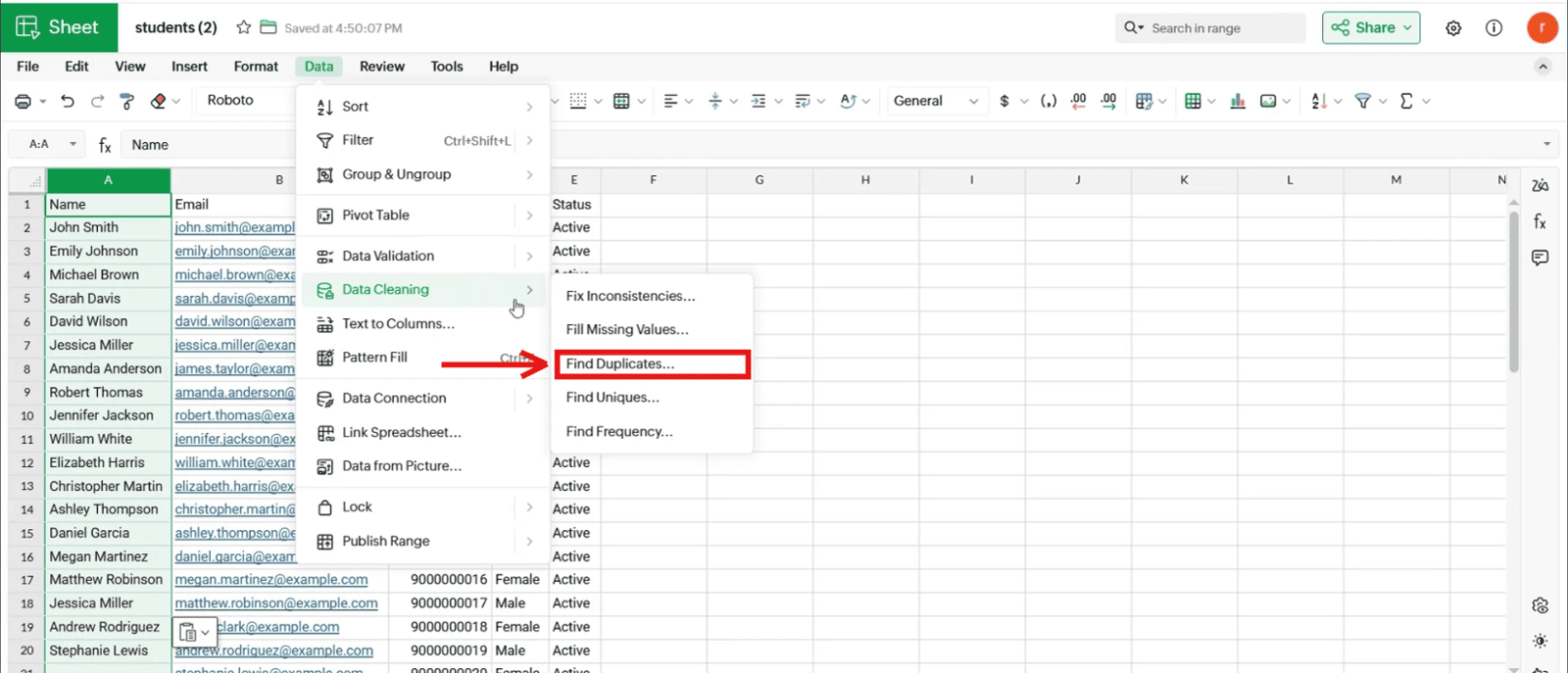
3.3 Click Find Duplicates… in the submenu (3.3_Click_Find_Duplicates).
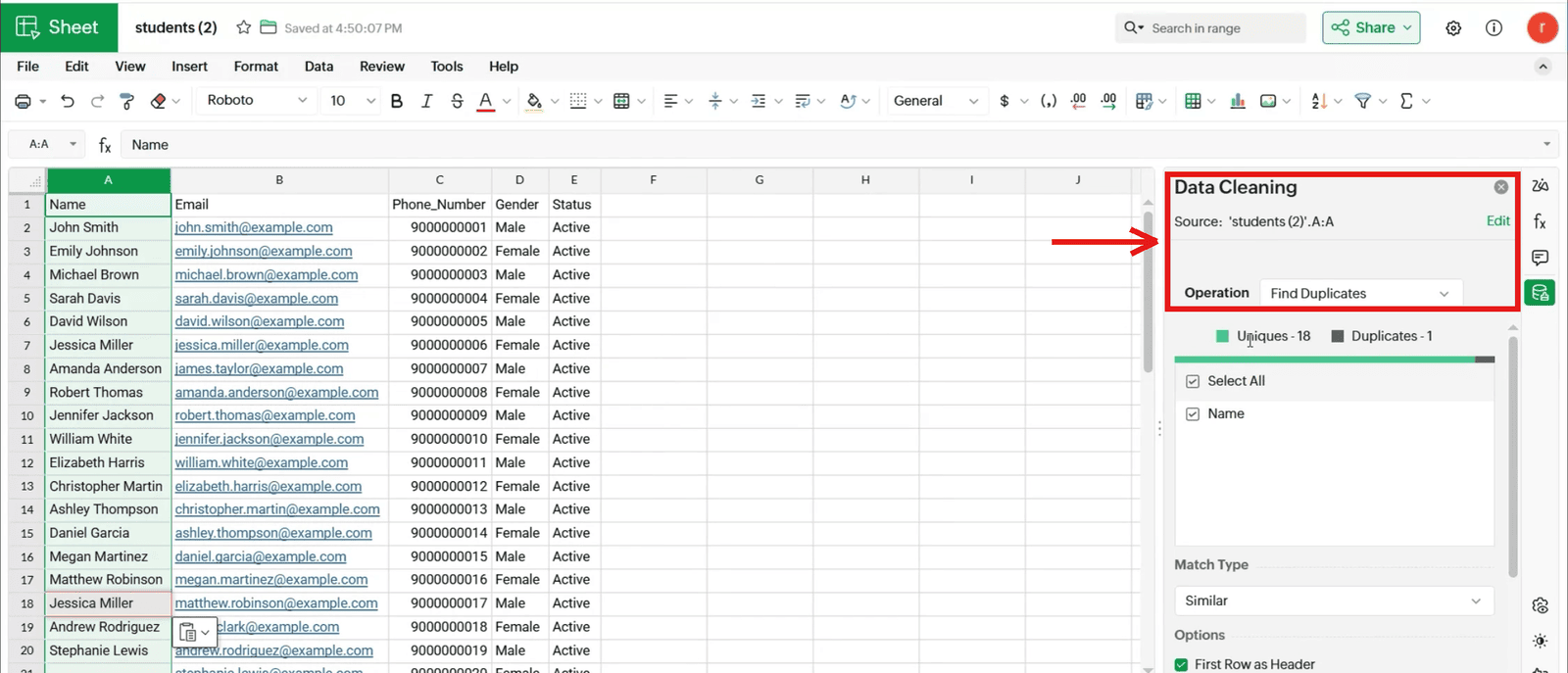
4. Review the Data Cleaning panel
4.1 The Data Cleaning panel opens on the right with Operation set to Find Duplicates (4.1_Data_Cleaning_panel_opens).
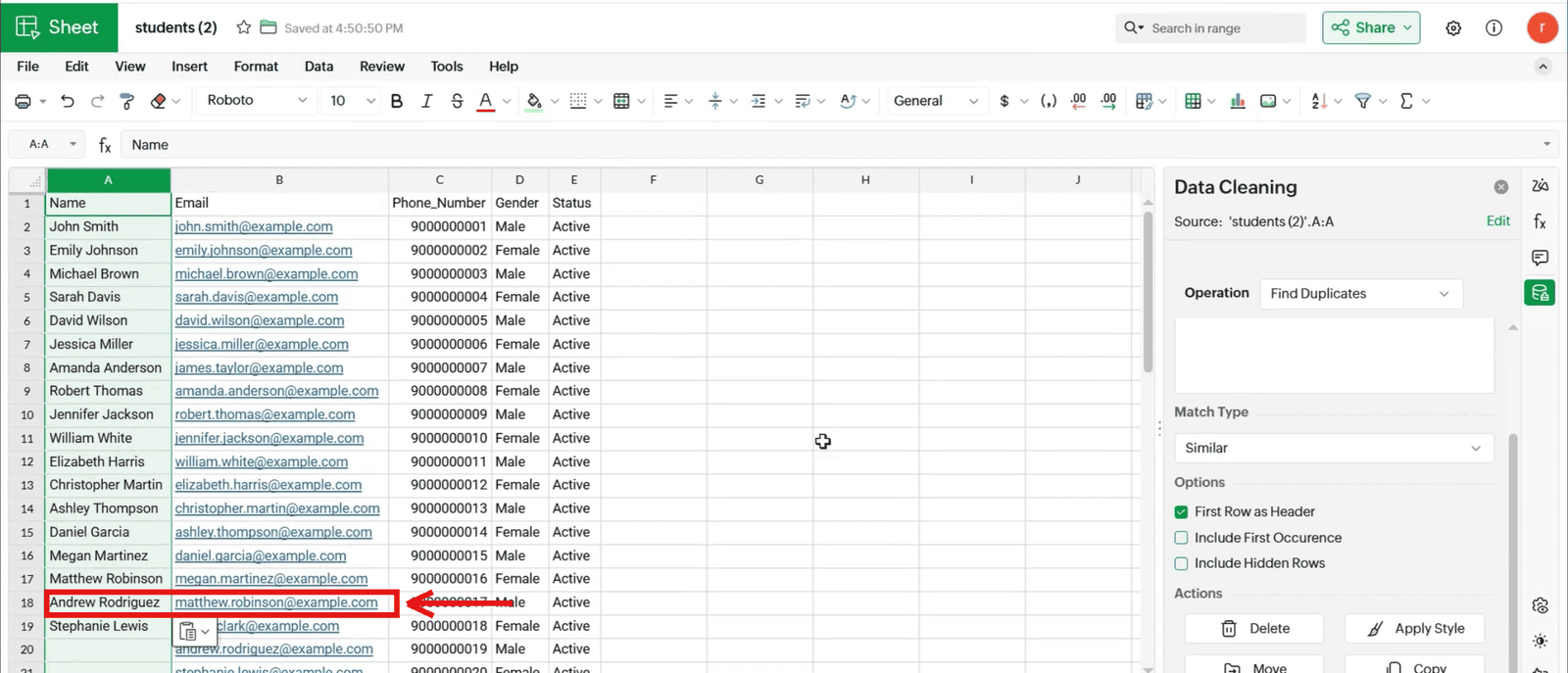
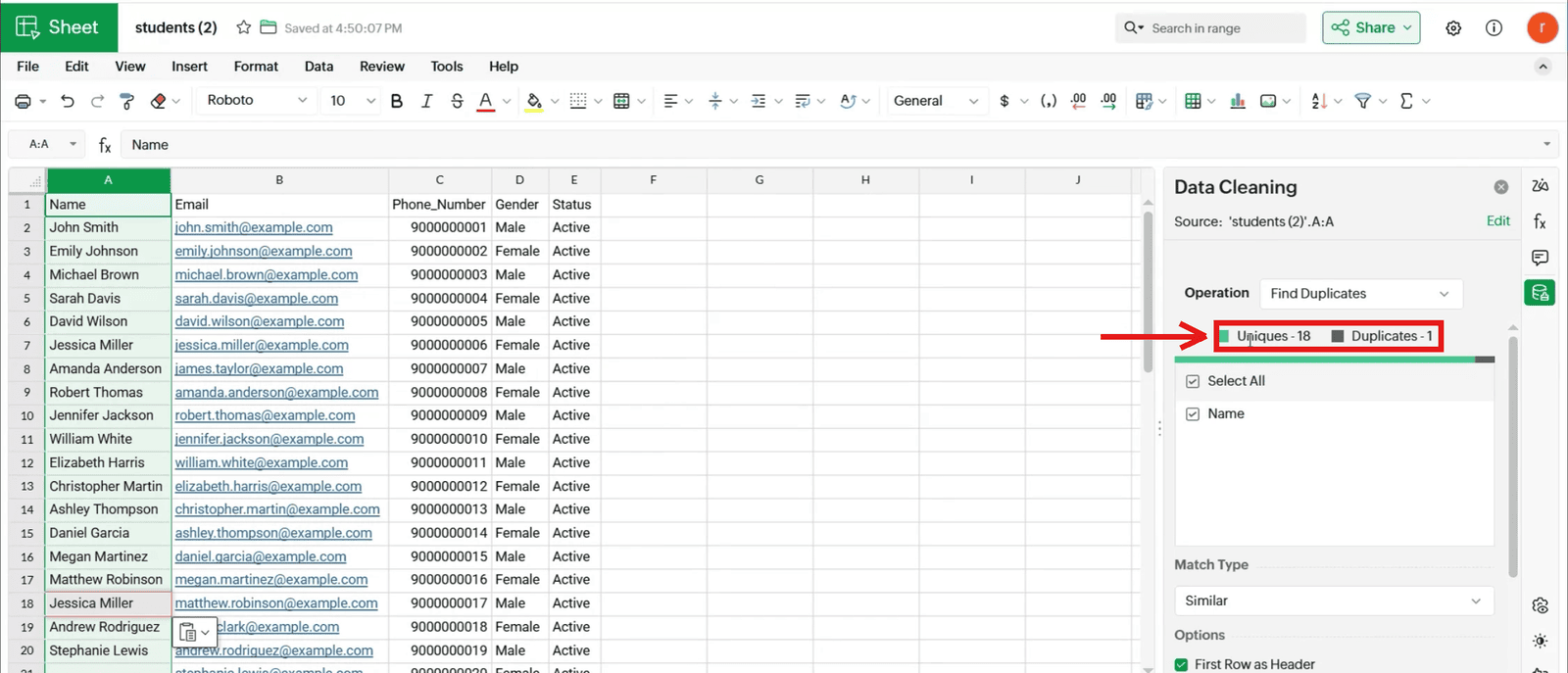
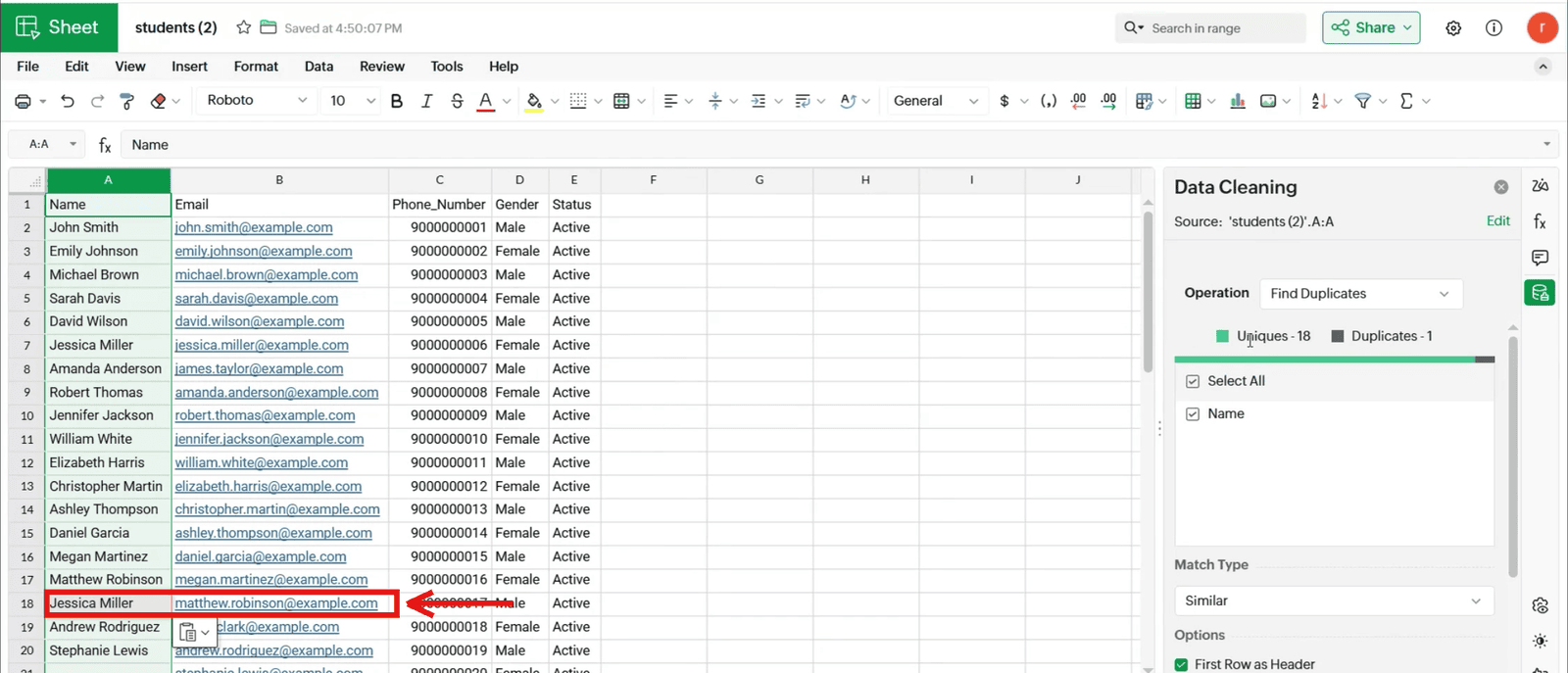
4.2 Zoho Sheet scans the data and shows the counts, here Uniques - 18 and Duplicates - 1 (4.2_Check_Uniques_and_Duplicates_count).
4.3 The duplicate row is marked in the sheet (4.3_Duplicate_row_highlighted).
5. Choose the columns to check
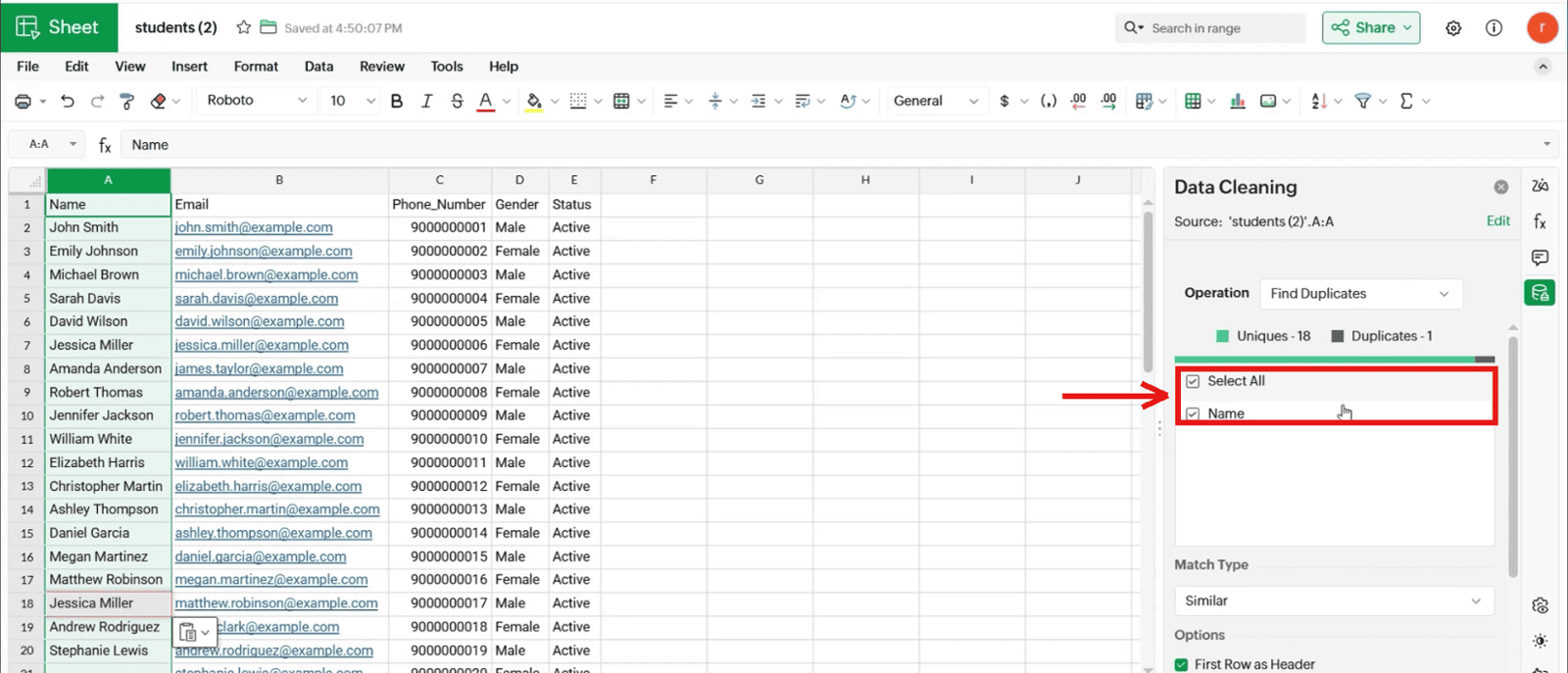
5.1 Tick or untick the column checkboxes (Select All, Name) to choose what counts as a duplicate (5.1_Select_columns_to_check).
6. Set the match options
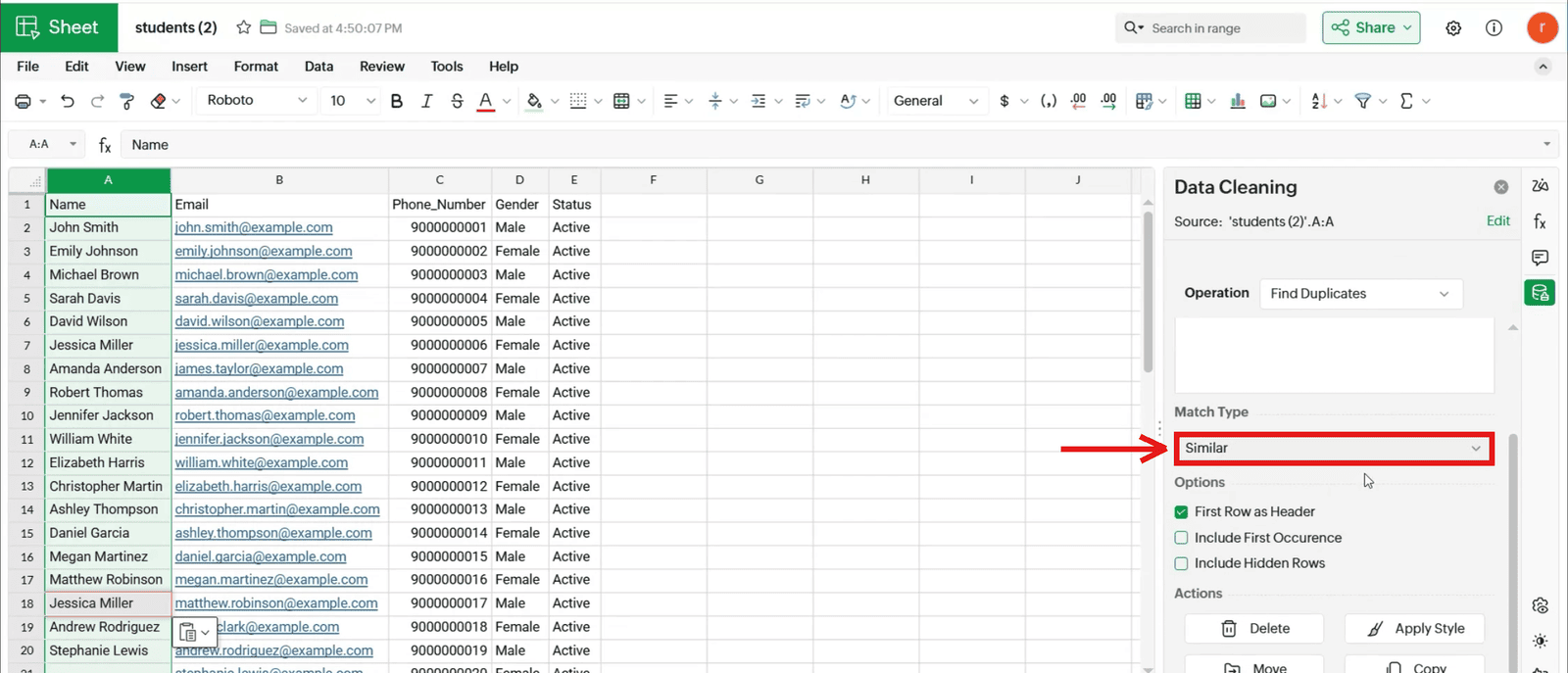
6.1 Choose the Match Type (Similar) (6.1_Choose_Match_Type).
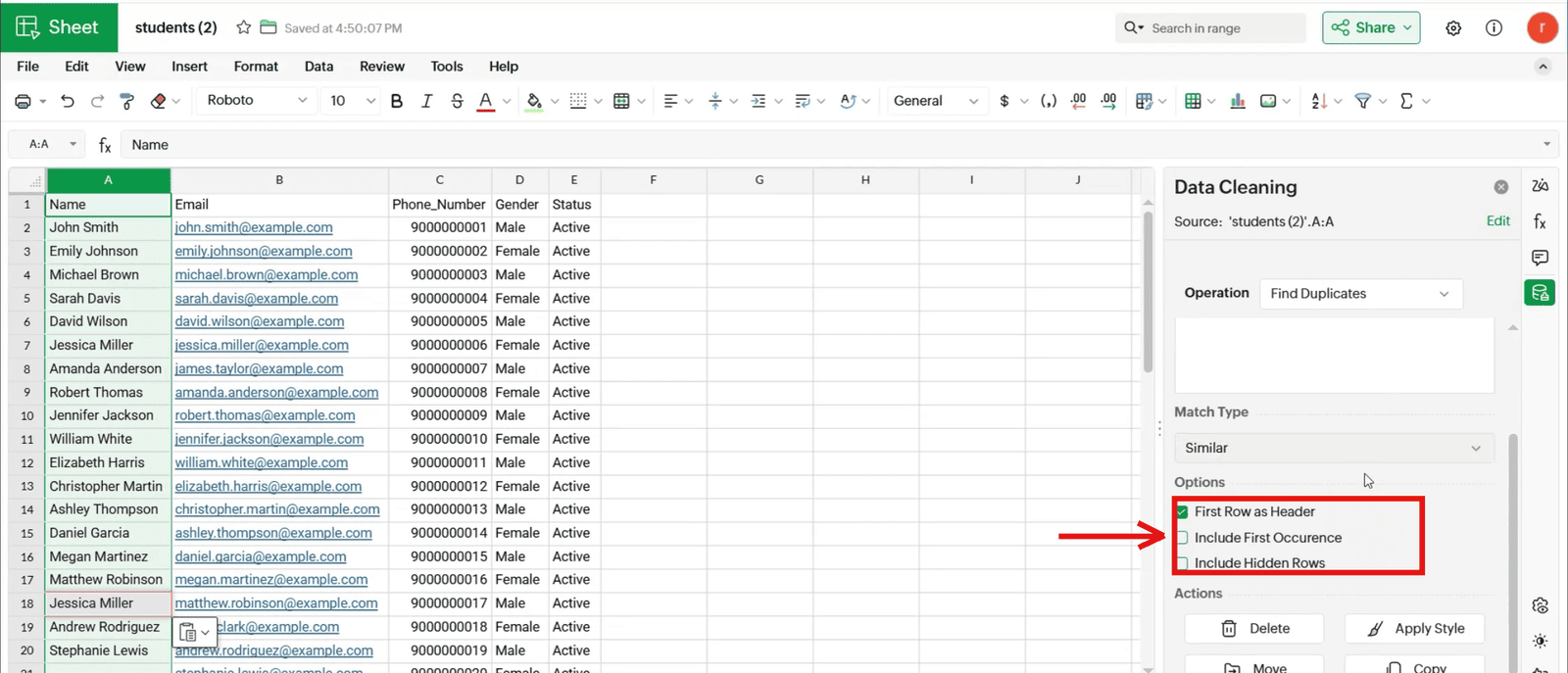
6.2 Set the options: First Row as Header, Include First Occurrence, Include Hidden Rows (6.2_Set_Options).
7. Delete the duplicates
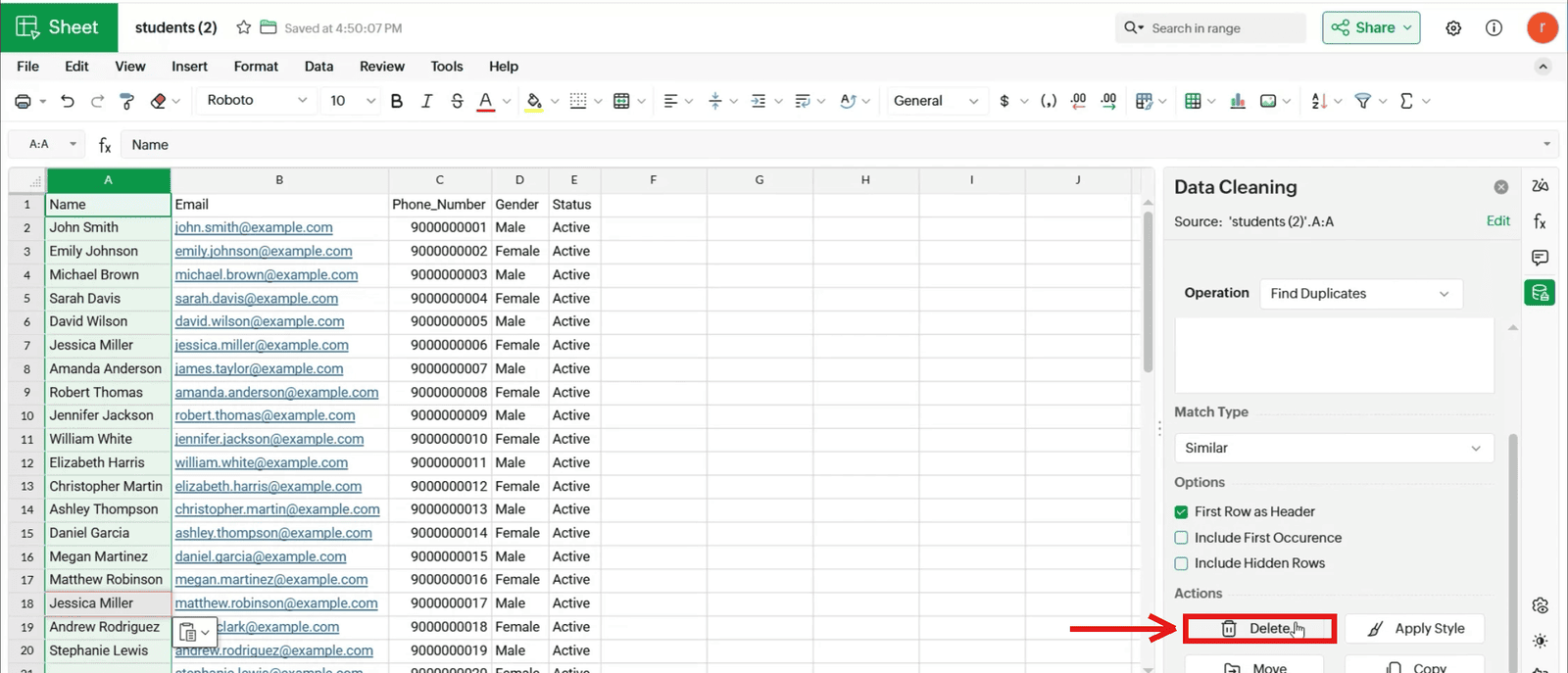
7.1 Click Delete under Actions at the bottom of the panel (7.1_Click_Delete).
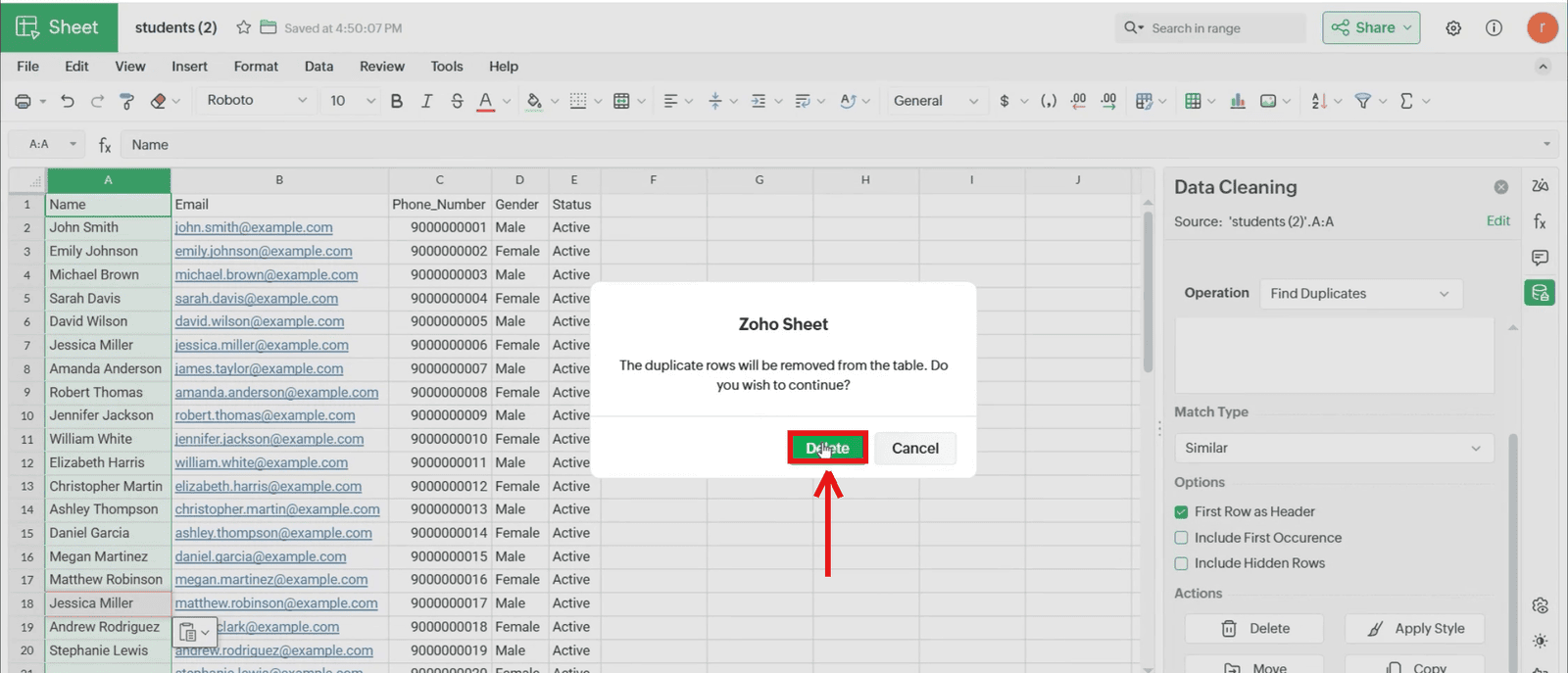
7.2 Click Delete again on the confirmation prompt (7.2_Confirm_Delete).
8. Check the result
8.1 The duplicate row is removed straight away, so “Jessica Miller” in row 18 is gone and the next row moves up (8.1_Duplicate_rows_removed).